Problem
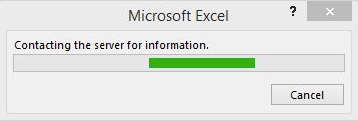
“Contacting the server for information” or “Getting your new Office ready for you” message box prompt for long periods of time while opening up Microsoft Office 365 applications.
Solution 1: Close the Message and Microsoft Office App
- Press CTRL + SHIFT + ESC key combination to open Task Manager.
- Select Microsoft Office App that is currently blocked from working because of the message box.
- Click End Task button at the bottom of the dialog box. Your unsaved data in the app will be lost.
- Re-open Microsoft Office App.
Solution 2: Disable “Use Office 2016 to sync Office files that I open” Option in OneDrive sync client
For Windows, right click OneDrive icon in the taskbar > Settings > Office > uncheck Use Office 2016 to sync Office files that I open option.
For Mac, click the OneDrive icon in the menu > ellipsis > Preferences > uncheck Use Office 2016 to sync Office files that I open option.
After unchecked this setting, all files will be synced by OneDrive sync client.